Step 4 · Staff
Receiving the answer
The buyer has answered. Read it, tell the customer, and confirm you did.
Where the answer shows up
- The bell — a notification with the request number and the answer
- Your email — the same answer, with a link to the request
- Dashboard → Answers to read — every answer you haven't marked received yet
- My requests — the card is flagged NEW ANSWER
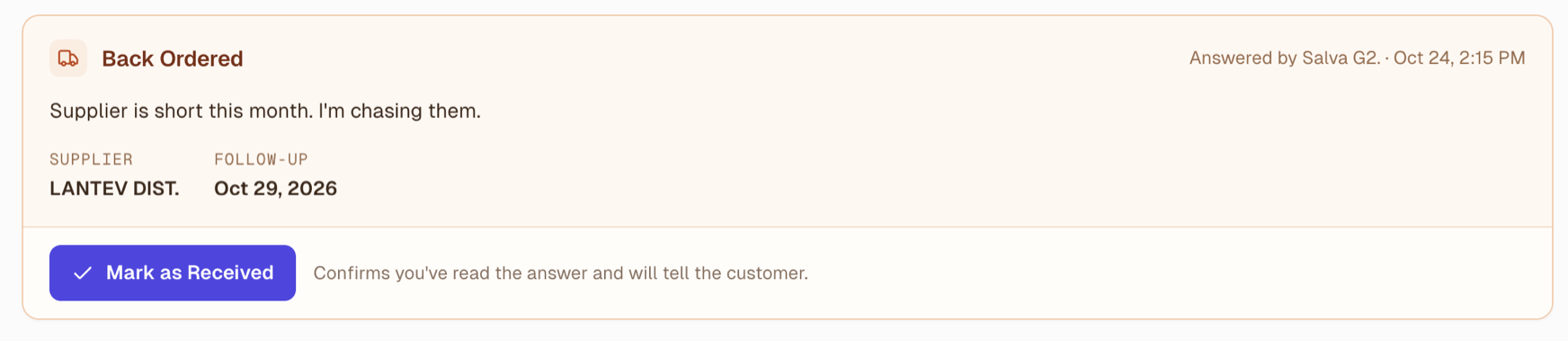
Mark as Received
Open the request. The answer panel shows what the buyer decided, the date or supplier that goes with it, and the note for the floor. Once you have informed the customer — or know you will — click Mark as Received.
Important
Marking received is what tells the buying team the customer has been handled. A request cannot be completed until you do — and the buyer sees it waiting on you until then.
Your tasks on the request
If the buyer assigned you a task — calling the customer, posting a shelf notice — it is listed on the request and under My Tasks. Mark it done from either place.