Step 3 · Buyer
Answering a request
Open a request from the queue, tell the floor what to say to the customer, and assign whatever needs doing.
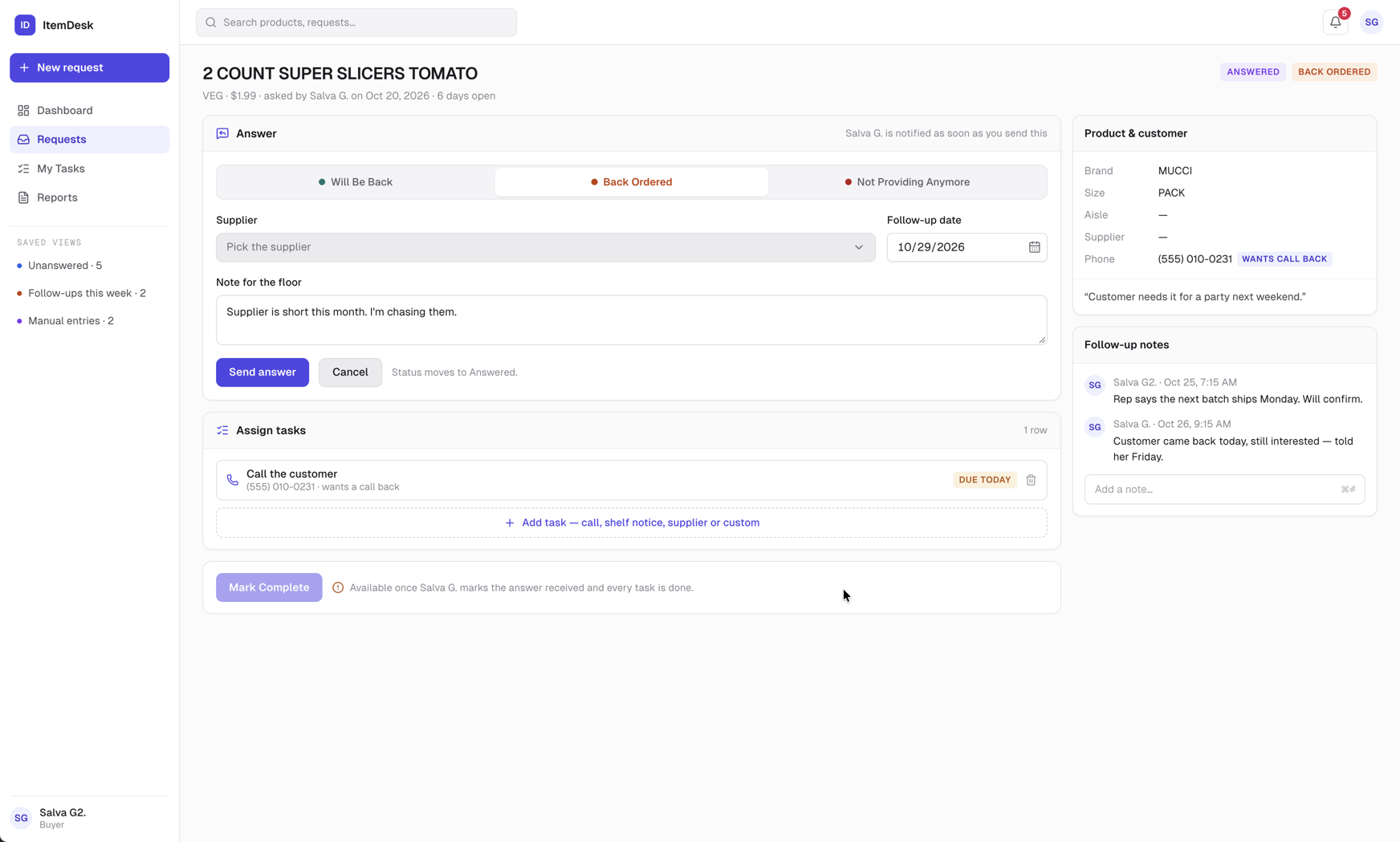
The three kinds of answer
| Answer | What it needs |
|---|---|
| Will Be Back | The expected return date. |
| Back Ordered | The supplier, and a follow-up date — the day you'll chase them. It shows up on the dashboard and in the Follow-ups this week view. |
| Not Providing Anymore | The reason, so the floor can explain it. The supplier is optional. |
Note for the floor is the sentence the staff member will repeat to the customer. Write it as you would say it. Then Send answer: the staff member who created the request is notified in the app and by email.
Note
Changed your mind? Edit answer replaces it. The staff member will see the new version next time they open the request.
Assigning tasks
Under Assign tasks, pick what needs doing, who does it, and by when. The assignee is notified and finds it under My Tasks.
- Call the customer — shows the customer's phone number on the task
- Post a shelf notice — shows the aisle, when the catalogue knows it
- Contact the supplier — shows the supplier's name
- Custom — type your own title
An open task can be removed with the bin icon. A task that is already done stays as a record.
Notes, editing, deleting
- Follow-up notes — a thread shared with the staff member — updates, questions, what the supplier said. ⌘⏎ sends a note.
- Edit (managers) — change the question, the customer's phone or the call-back flag
- Delete (managers) — removes the request with its answer, tasks and notes. It cannot be undone.