Step 1 · Staff
New request
A customer asks about something that isn't on the shelf. Find the product, note the question, send it.
Finding the product
Click New request in the sidebar. The search box looks through the whole catalogue by name, brand, item code or barcode. Results appear as you type; use the arrow keys and Enter, or click a result, to select it.
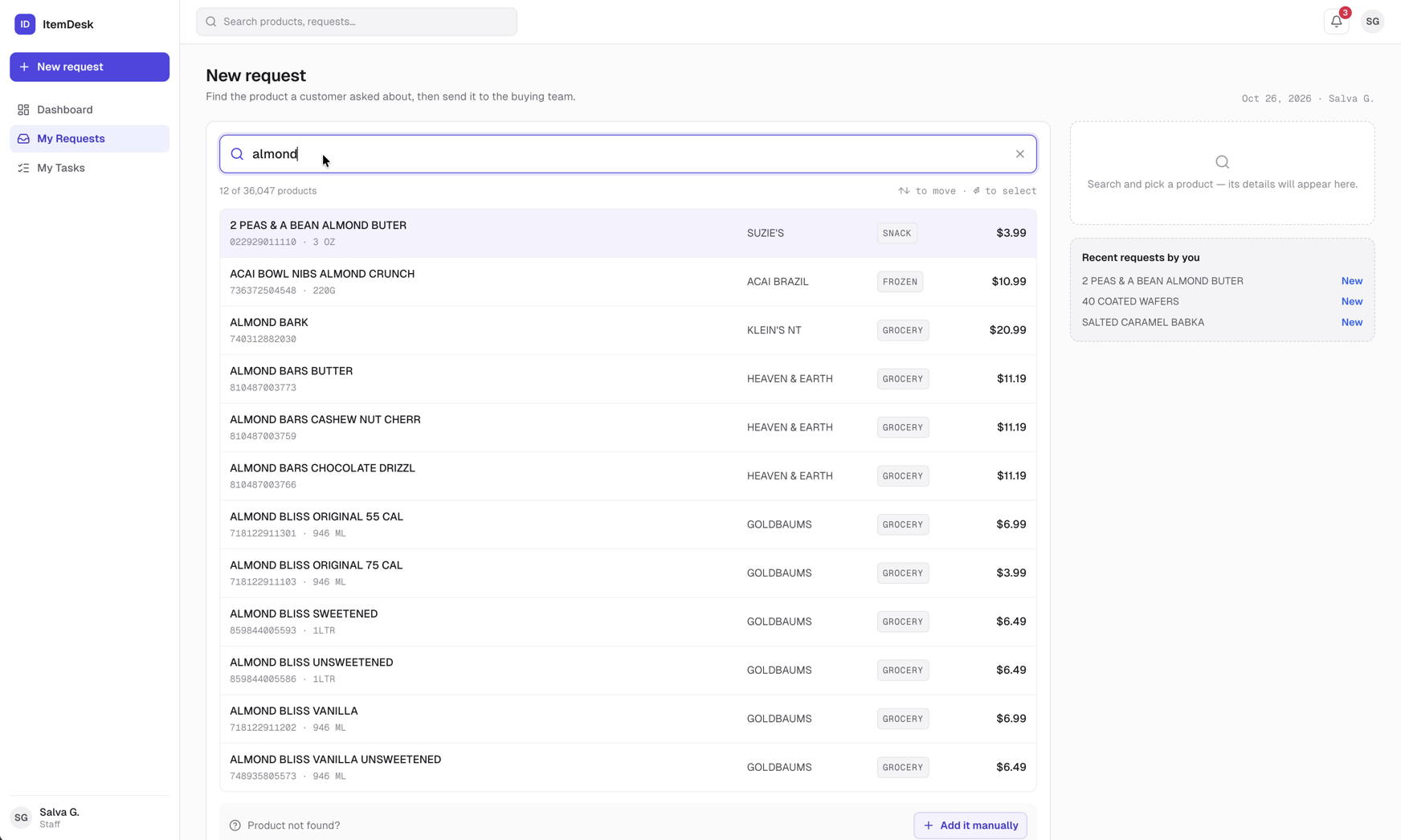
Once selected, the product card on the right shows its brand, category, size, price, aisle, supplier and item code, so you can confirm it is the right one.
Scanning the barcode
With a handheld barcode scanner, point it at the item while the search box is focused: the product is selected straight away. Typing the barcode and pressing Enter does the same thing. Scanning with the phone camera is not available yet.
Product not in the catalogue
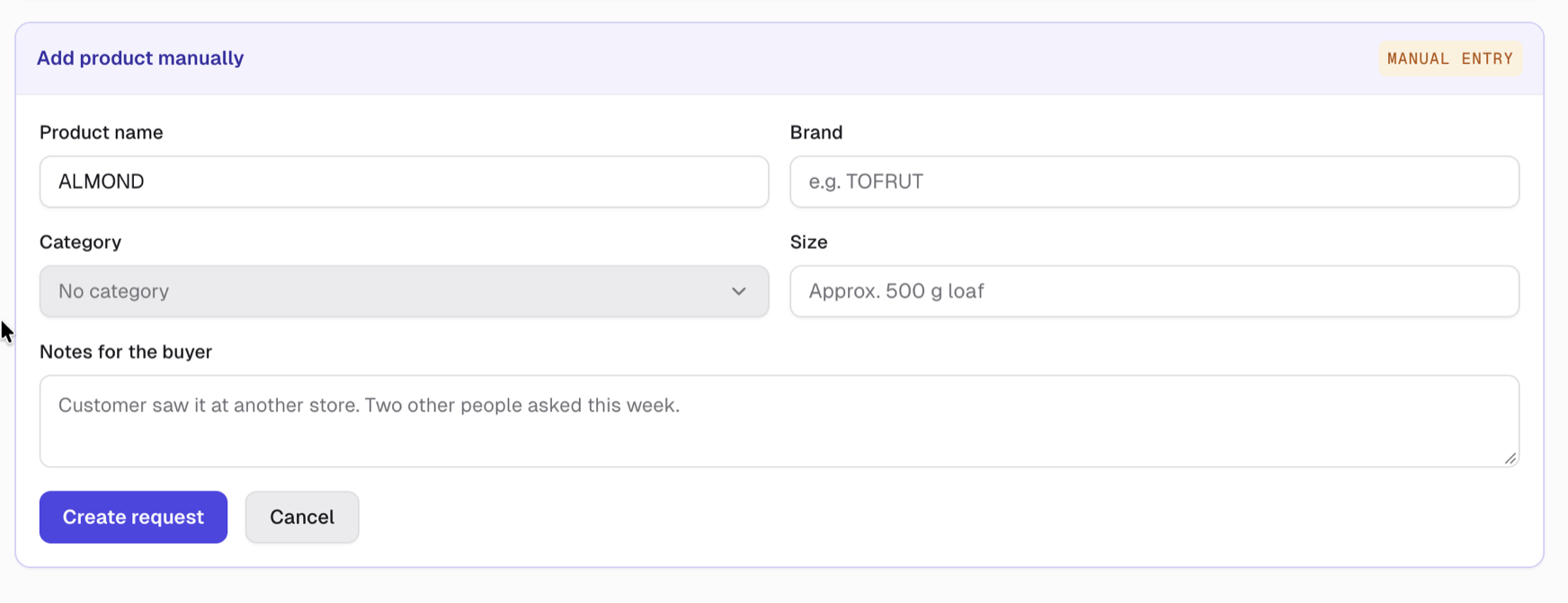
If the store doesn't carry it, click Add it manually and fill in what you know: product name, brand, category, size, and any notes for the buyer. The request is flagged Manual entry so the buying team knows it needs pricing.
The customer's request
- Question / notes — what the customer asked, and anything the buyer should know — the more specific, the better the answer
- Customer phone — optional; needed if the customer wants to be called back
- Customer wants a call back — turn it on and a Call the customer task can be assigned once there is an answer
Sending or saving
- Create request — sends it to the buying team right away. Every buyer and manager is notified in the app and by email.
- Save draft — keeps it for later without notifying anyone. Only you can see a draft. Open it from My requests and click Send to buying team when it's ready.
Note
Recent requests by you, on the right, lists what you sent last — handy to check whether a colleague already asked about the same item.