Introduction
Getting Started
Accept your invitation, choose a password, and find your way around.
Your invitation
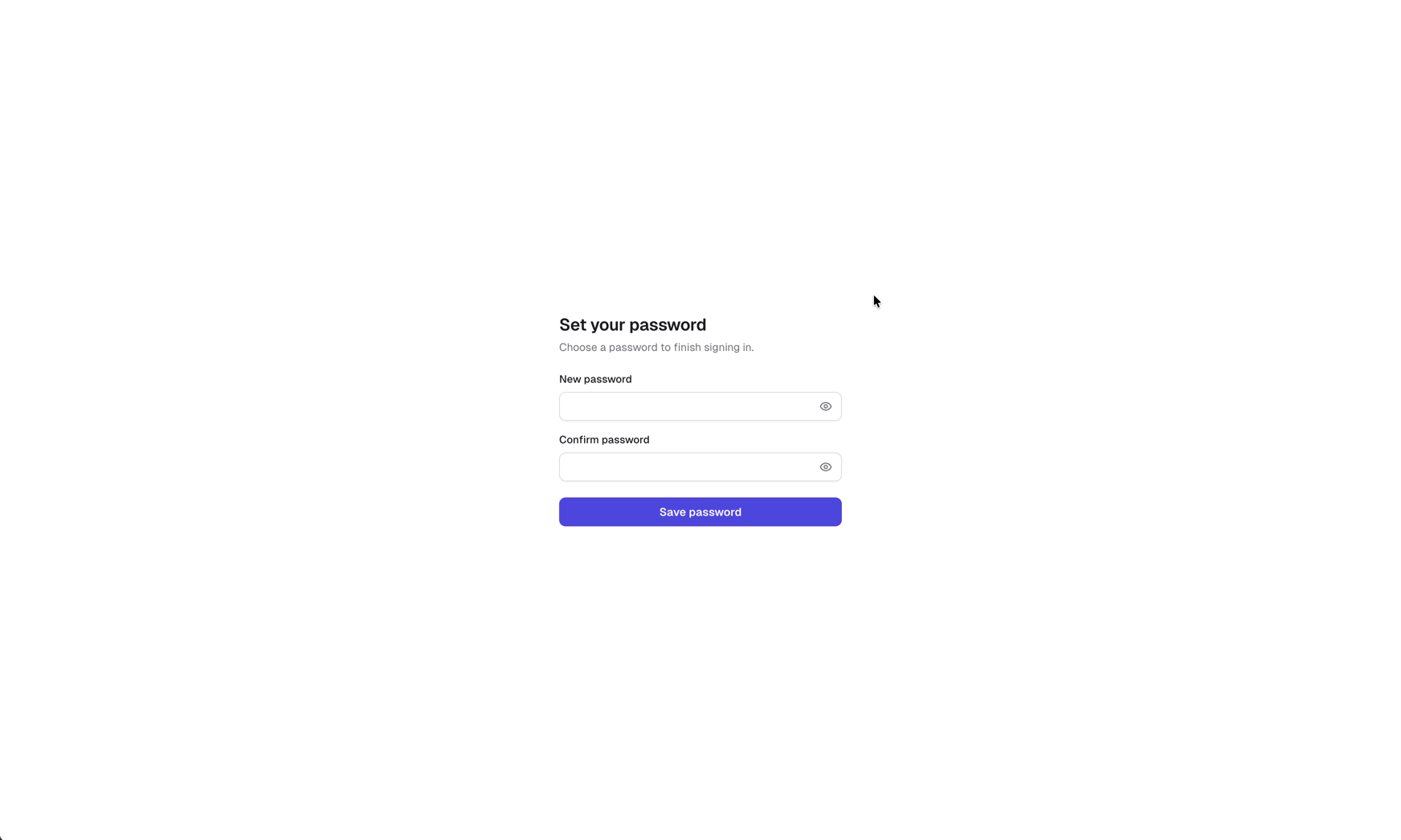
There is no sign-up page. A manager invites you, and you receive an email titled “You've been invited to ItemDesk” with a Set your password button. Click it, choose a password of at least 8 characters, confirm it, and save.
Signing in
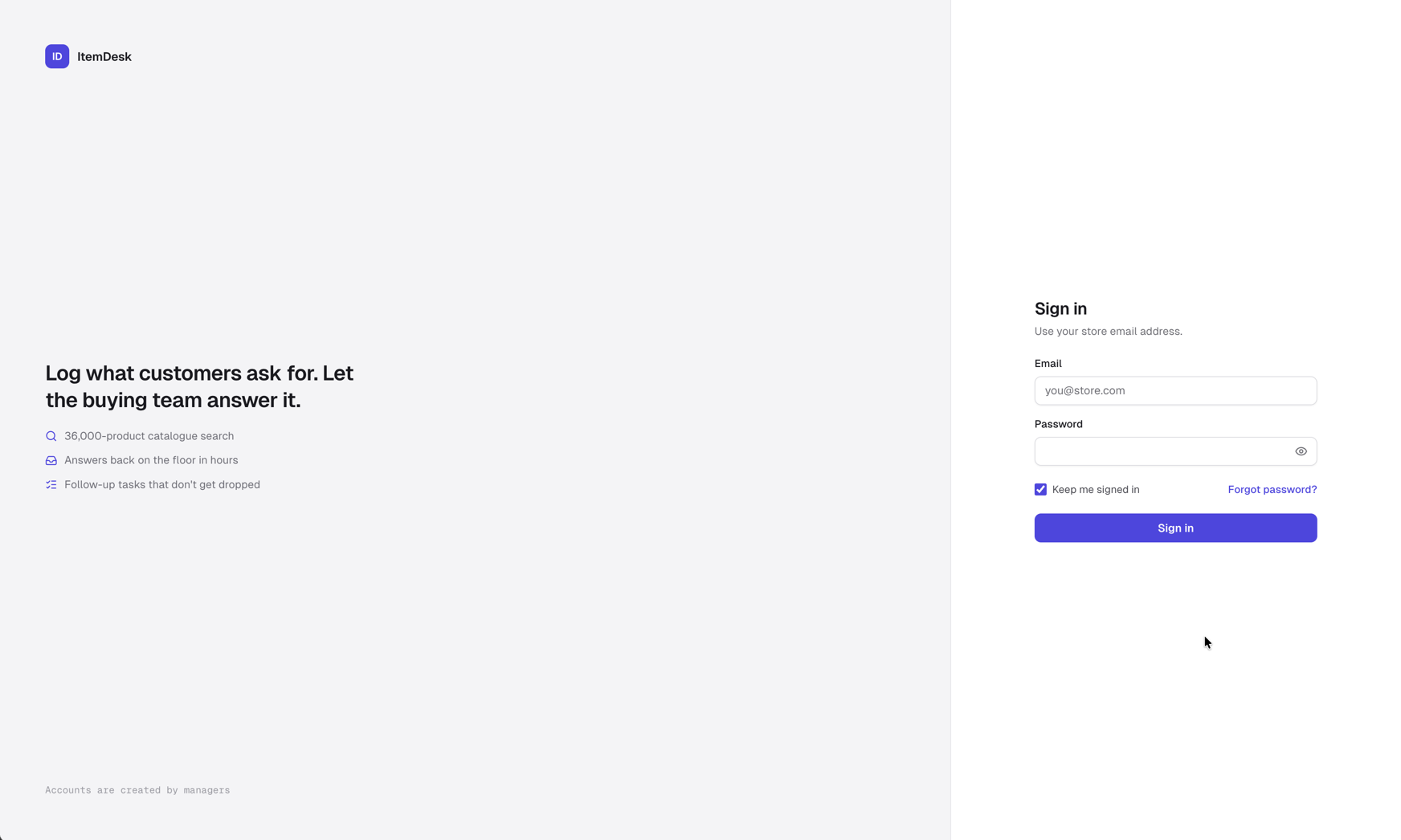
Once your password is saved you are taken back to the sign-in page. Enter your store email address and your password, then click Sign in. The eye icon in the password field shows what you typed.
Finding your way around
The sidebar on the left lists everything you have access to. What you see depends on your role.
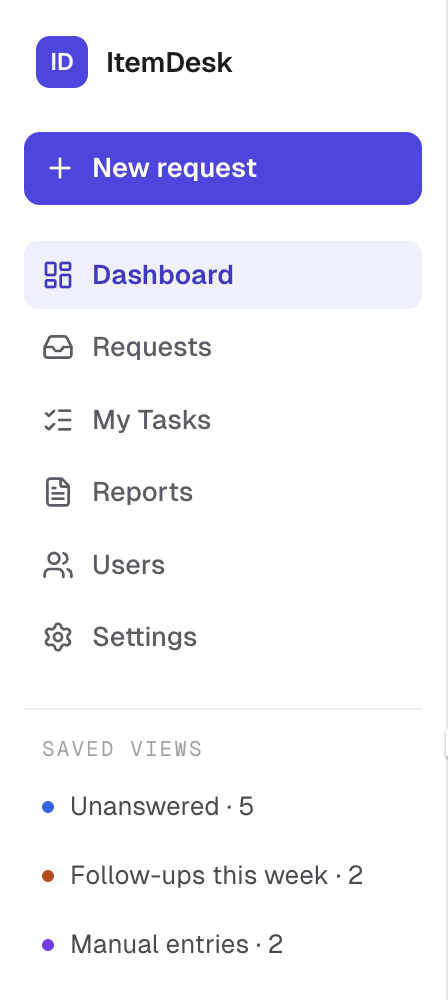
- Dashboard — what needs your attention today
- My Requests / Requests — your own requests on the floor; the whole queue for the buying team
- My Tasks — the follow-up tasks assigned to you
- Reports — the supplier report (buying team and managers)
- Users — invite and manage the team (managers)
- Settings — the labels everyone sees (managers)
On a phone the sidebar is replaced by a bar at the bottom of the screen with Dashboard, Requests and Tasks. The bell at the top right shows your notifications, and your initials open the menu to sign out.
Roles
Every account has one of three roles. Your role is shown next to your name at the bottom of the sidebar.
| Role | What you do |
|---|---|
| Staff | Log what customers ask for, read the buying team's answers, and handle the tasks assigned to you. |
| Buyer | Work the requests queue: answer requests, set follow-up dates, assign tasks, complete requests, and read reports. |
| Manager | Everything a buyer does, plus inviting and managing users, editing or deleting requests, and renaming the labels in Settings. |